A pool pump schedule not working may be a control conflict rather than a failed timer. The pump, automation panel, and app can display different programs. First establish which device actually commands the pump.
Then compare the expected run with the status shown at the missed time. A saved schedule is not always an enabled schedule. A manual override can also change what happens next.
Find who controls the pool pump schedule
Record the pump model, controller model, and app in use. Photograph their status screens without opening electrical covers. Look for local, remote, service, timeout, or schedule indicators.
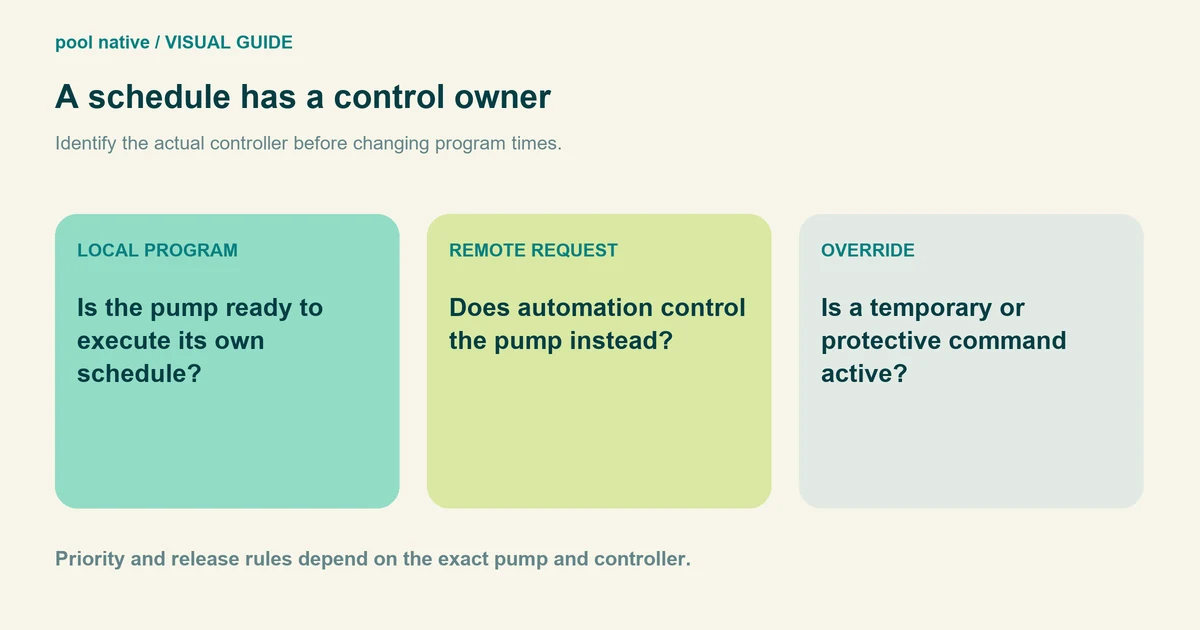
For example, IntelliFlo VSF can receive commands from compatible automation systems. Its local schedule behavior differs from external control. Editing the pump’s local program may not change the controller’s command.
Do not disconnect communication wiring to test this. Configuration and wiring checks belong to the installer when the control relationship is unclear. Start with the visible menus and documented operating modes.
Build a timeline of the missed run
| Record | Why it helps |
|---|---|
| Expected start and stop time | Defines the actual schedule failure |
| Clock and AM or PM on the controlling device | Reveals a time error or power interruption effect |
| Active mode and displayed feature | Shows overrides, remote commands, or service mode |
| RPM and error message | Separates a different program from a stopped pump |
| Recent change | Connects the fault with a new app setting, outage, or equipment replacement |
Check readiness, overlaps, and overrides
Confirm the schedule was saved and enabled. On IntelliFlo VSF, the pump must be in its schedule ready state for local programs to run. A stopped schedule does not resume merely because the time arrives.
Check overlapping programs against the exact model’s priority rules. Do not assume the latest program always wins. Some systems prioritize flow programs differently from speed programs.
Review quick clean, spa, heater, freeze, and timed override functions where present. These may explain a different speed or an extended run. Avoid disabling protective functions just to make the clock match your expectation.
A mechanical clock that is not advancing needs timer hardware checks. A pump that attempts to start but stops with an alarm needs shutdown troubleshooting. Those are separate from a saved schedule conflict.
Read an overlap without assuming the schedule failed
Imagine a local filtration program from 6 AM to 10 AM, plus an automation request for heating from 8 AM to 9 AM The pump may run at a different setting during the heating request. Whether that is correct depends on which control owns the pump and its priority rules.
Write the two requests on the same timeline. At 8 AM, record the active feature and actual pump setting. At 9 AM, check whether the control returns to the expected filtration behavior.
A change during the overlap is not automatically a missed schedule. A failure to return afterward is a more specific observation. That distinction helps the installer examine command release and configuration rather than simply extending the original program.
Separate electrical power from permission to run
A mechanical timer may supply power to a digital pump, while the pump’s own controller decides whether to start. The display can therefore be lit without an active run. Conversely, cutting power can prevent a saved local schedule from being available when it is due.
Identify that relationship before changing either timer. Do not create overlapping power interruptions and internal schedules by trial and error. The control plan should provide power and run commands in the way the equipment manufacturer supports.
Clock settings may also exist in more than one device. Compare the controlling clock with the time shown in the app and pump display. An app screenshot is useful, but it does not prove that the equipment received or accepted the change.
Check the transition, not just the next start
After correcting a setting, observe the next start, any overlapping feature, and the eventual stop. A manual test often bypasses the conditions that caused the schedule problem. It cannot verify the whole sequence.
Keep the original screenshots until the revised sequence works. If the change causes another feature to lose required flow, restore the supported arrangement and involve the installer. A schedule repair must preserve the heater, sanitizer, cleaner, and protection requirements that depend on it.
Make one change and verify the next cycle
Save screenshots of the existing settings. Correct one confirmed issue, such as an incorrect clock or disabled program. Keep the required equipment flow and runtime intact.
Observe the next start, program transition, and stop. Record what the controller and pump display at each point. A successful manual start does not prove the schedule has been repaired.
If the pump continues after every demand should end, use the unwanted continuous running guide. If it never receives the correct command, give the installer your timeline. That is more useful than repeatedly deleting and recreating programs.