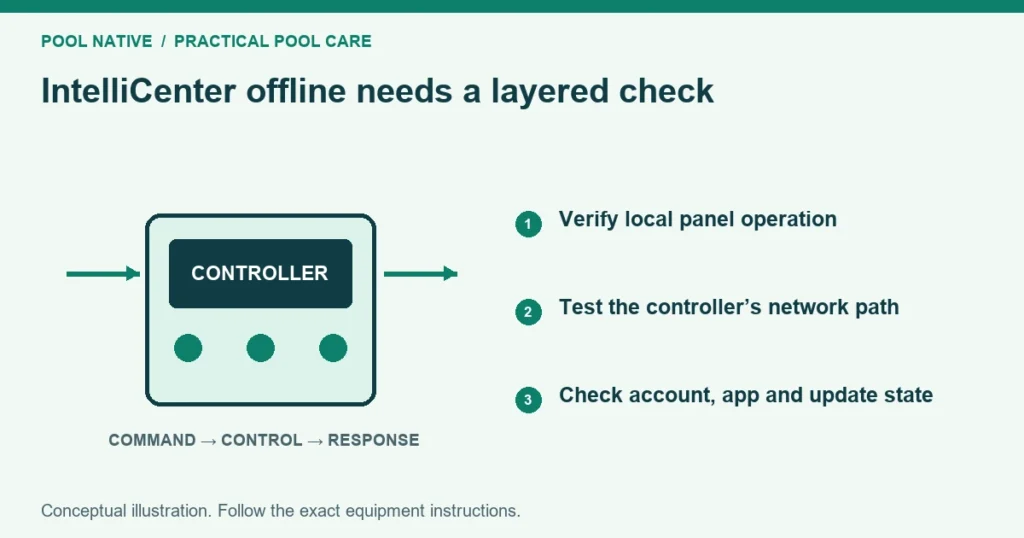
If IntelliCenter appears offline, first check whether the outdoor panel still controls the pool. A working panel with a failed app connection points toward a different problem from a dead controller. Separate local operation, network access and account access before resetting anything.
Pentair now uses the Pentair Pool app name for its current integration. Older instructions may say Pentair Home or IntelliCenter2. Record the exact app and controller firmware so support can match the correct connection process.
Check the pool’s actual operating state
Read the outdoor panel’s status and confirm whether normal circulation is occurring. Do not assume the pump stopped because the phone shows Offline. Conversely, a saved dashboard is not proof that its displayed temperature or equipment status is current.
If the outdoor panel is unresponsive, record any error and arrange qualified service. Keep the electrical enclosure closed. A controller power or hardware problem is not resolved by repeatedly signing into the app.
If the panel works, check its operating mode. Service mode can affect normal commands. Distinguish a command restriction from a network connection failure.
Use a connection ladder
| Observation | Next area to investigate |
|---|---|
| Panel does not operate locally | Controller power, hardware or system fault |
| Panel works but network test fails | Network link, router and address configuration |
| Network works but remote system is missing | Account, registration or migration state |
| Local app access works but remote does not | Internet and remote account path |
| Both connect but one device fails | Device configuration, communication or fault |
This sequence keeps the investigation focused. Do not replace a network bridge because one heater will not fire. Check the heater’s actual status and operating conditions separately.
Identify the installed network method
IntelliCenter installations may use a direct Ethernet route, a supported wireless link or a WiFi bridge arrangement. Determine which hardware is present from the installation record and accessible labels. Do not assume every external antenna uses the same setup.
Check accessible power and cable connections without opening the load center. Note any recent router, WiFi name, password or internet provider change. That timing is often more useful than the age of the controller.
A phone with strong WiFi at the pool does not prove the controller’s network device has a reliable link. Its position and network path can differ. Test the controller’s connection rather than relying only on the phone’s signal display.
Inspect network status at the panel
Pentair’s user guide places Network and WiFi Setup under Settings, then Advanced System Configuration. The available options depend on the installed connection hardware. Read the assigned network information and use Internet Connection Test where provided.
For a supported WiFi bridge, the guide describes selecting the intended wireless network and entering its password. For Ethernet style connections, address configuration is handled through the relevant network settings. Follow the branch for the actual installation.
Do not copy the IP address shown in a manual screenshot. It is an example, not the correct address for your home. If static settings were intentionally configured, consult the network owner before switching to automatic addressing.
Check account and migration status
Confirm that you are signed into the intended owner account and have access to the correct pool. A home purchase, installer account or changed email can complicate ownership. Use Pentair’s supported access process instead of creating several duplicate systems.
Pentair’s integration FAQ identifies incomplete migration as one possible reason only Local access appears. Its current page and older FAQ wording cover the transition from IntelliCenter2 through the Pentair Home naming. Follow the current migration instructions for the account’s state.
Do not delete the pool or factory reset the controller merely because it is absent from the dashboard. Account association and equipment configuration are different. Save the current system record before any support directed change.
Restart one component at a time
If the matching instructions recommend a restart, distinguish the app, network device and controller restart options. Record which one was used and whether the result changed. Repeatedly cycling all power obscures that information.
Avoid restarting during an update or while a technician is servicing equipment. Confirm that the pool will remain in a safe operating configuration. A restart is not a substitute for electrical isolation.
If the connection returns briefly and fails again, save the timing, network results and indicator behavior. Ask support to investigate the recurring condition. Temporary recovery alone does not identify a defective board or bridge.
Treat firmware as a planned step
Use the official firmware page for the exact starting version. At the September 2026 research check, Pentair lists version 3.014 and an incremental path for older systems. Verify the current instructions before updating because those requirements can change.
Pentair specifically calls for backing up the system configuration first. Its guidance requires systems on 1.047 to move through 1.064 before the newer release. Do not skip intermediate versions or use an unofficial downgrade file.
Check the required mobile app version as well. Arrange a suitable maintenance window and follow the prompts without interrupting power. If the starting version or update path is unclear, use the dealer or Pentair support.
Do not assume a cloud outage or a bad controller
Similar owner reports can help establish that others have a problem, but they do not prove a current service outage. Check the manufacturer’s current support information and provide your local test results. Local equipment should be assessed on its own evidence.
Likewise, one Offline message is not enough to order a replacement panel. A qualified technician can distinguish hardware failure from network, account and software issues. Keep the error wording and current versions with the report.
Verify after the connection returns
Check that displayed data is current, then test a safe known circuit and observe its physical response. Confirm remote access separately if it is required. Review schedules, clock and operating mode after any configuration work.
If schedules are wrong, use the IntelliCenter scheduling guide. If the system is actually EasyTouch or IntelliTouch with ScreenLogic, use ScreenLogic troubleshooting. The correct controller family determines the next steps.