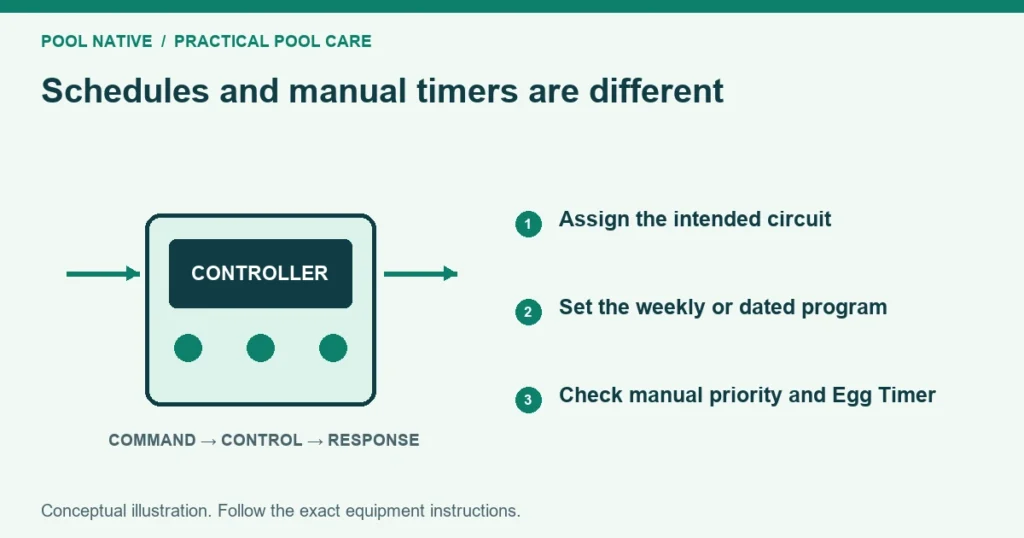
An IntelliCenter schedule activates a configured circuit or group at selected times. An Egg Timer limits a manual run. A feature circuit can request a function such as a pump speed or valve action without being the same thing as a physical relay.
Keep those three ideas separate before editing a program. A correct time window cannot fix a circuit mapped to the wrong device. A manual override can also make a good schedule appear to stop or run late.
Check the system before changing schedules
Confirm the controller’s clock, date, location and operating mode. Verify the time display, including AM and PM where used. Sunrise and sunset programs also depend on the location settings.
Check Service or Timer mode and any vacation schedule. Record existing programs before editing them. A saved screenshot or configuration backup is more useful than trying to remember what changed.
Menu labels can differ with firmware and the app interface. The paths below describe the outdoor panel workflow in Pentair’s IntelliCenter user guide. Match them to the installed version rather than forcing an older screenshot onto a different display.
Identify the circuit that produces the intended action
An AUX circuit is associated with configured control functions, often including a relay. A feature circuit is a logical command that can be assigned to supported equipment behavior. A group combines configured circuits or lights.
The name is a label, not the complete configuration. Calling a feature Low Speed does not assign a pump speed by itself. Confirm the pump’s circuit assignment and requested setting in the installation record.
Before scheduling an unfamiliar circuit, have the installer explain what it activates and disables. A group may affect several devices. Do not change the circuit type to solve a timing problem without checking its wider effects.
Create a weekly program
From the panel Home screen, open Schedule and use Add Schedule or Add Program as shown by the installed version. Select Weekly, then choose the intended circuit or group. Confirm the selection before entering times.
Set the active days and start and stop times. Review the saved summary for the circuit name, days and duration. A program with no selected days cannot provide the routine you intended.
For a simple lighting example, a program from 8 PM to 10 PM lasts two hours. Verify the controller shows that interval and the desired days. This is an example for checking the schedule, not a recommended lighting routine for every pool.
Use the manufacturer’s available sunrise or sunset options if that is the intended behavior. Check any offset and local location setting. A fixed clock time and a sunset program will not behave identically through the year.
Set heating within the correct body program
For Pool or Spa schedules, the controller can offer heat source and set temperature options for configured equipment. Confirm which body of water the program controls. A feature label containing the word heater is not necessarily the proper heating command.
Pentair’s guide distinguishes a selected heat source from Don’t Change. The latter preserves the applicable body heat source behavior rather than defining a new source in that schedule. Review the result on the Pool or Spa screen.
A scheduled heating window requests operation; it does not guarantee the target temperature by its start time. Water temperature, weather, cover use and heater capacity affect warmup. Preserve the required flow and protective delays.
Use One Time Only for a dated event
Choose the One Time Only schedule type when the action should occur on a particular date rather than repeat weekly. Review both the date and time window. Check the installed version’s behavior after the program completes.
A one time program is different from pressing a circuit on manually. The manual command may be governed by its Egg Timer and priority settings. Use the correct method for the outcome you want.
For a planned spa session, verify the heating and valve configuration in advance. A scheduled icon does not prove the spa route is correct. Pool to spa switching explains the paired valve checks.
Understand what the Egg Timer controls
The Egg Timer specifies how long a circuit runs after manual activation. It is configured with the circuit, not as the start time of a weekly schedule. Read the actual setting before assuming a manual run will continue overnight.
Pentair’s guide also includes a Do Not Stop option for supported circuit settings. That makes a manual run continue until it is turned off. Use it only when continuous manual operation is actually intended and safe.
Do not change every Egg Timer to solve one unexplained stop. Identify whether the stop followed a manual command, a scheduled end or an equipment fault. Those are different mechanisms.
Manual Operation Priority changes the timeline
Inspect the actual Manual Operation Priority setting under General. Pentair’s user guide describes how manual operation can override a scheduled program. Its sections do not state a consistent default, so rely on the installed setting rather than an assumed factory value.
Consider a hypothetical feature scheduled until 6 PM. If someone manually operates it during that window, its subsequent behavior can depend on priority and the Egg Timer. Record the manual action when investigating a run beyond the scheduled stop.
Do not infer the cause solely from how long it ran. Check status, the active circuit and any other overlapping demand. A pump can remain running because another configured function still needs it.
Verify pump assignments and overlapping demands
Review which circuits call each supported pump and what speed or flow they request. Check heating, cleaning, spa and feature demands separately. The controller’s pump configuration determines the actual request when those functions operate.
Do not assume a feature circuit owns the physical pump exclusively. Another active circuit may also request operation. Ask the installer to document priority behavior for the pump and controller combination.
Preserve the pump’s required priming and safety settings. A schedule troubleshooting session is not a reason to bypass protection or force an unsuitable speed. Flow requirements still govern heaters and sanitizers.
Test one change under observation
Choose a safe, short test of a known circuit at a convenient time. Save the program, return to normal mode and observe its scheduled start. Confirm the intended equipment actually responds.
Observe the stop as well, allowing for configured protective delays. Record any manual intervention during the test. Then restore the intended routine and remove the temporary program.
| Failure | Check before rebuilding the schedule |
|---|---|
| Nothing starts | Mode, days, clock and selected circuit |
| Wrong equipment starts | Circuit mapping and group membership |
| Pump speed is wrong | Pump assignments and competing demands |
| Equipment runs past the end | Manual priority, Egg Timer, other circuits and delays |
| App and panel disagree | Connection status and current data |
For connection trouble, use IntelliCenter offline diagnosis. For pump runtime planning, use the pump runtime guide. Scheduling tells the system when to act; the operating requirement determines what it should do.